
Installation
Connect your GoHighLevel sub-account by creating a Private Integration Token with the right scopes.
To connect Social Sourced to your GoHighLevel sub-account, you'll create a Private Integration Token (PIT) inside GHL and paste it into Social Sourced's settings page. The whole thing takes about three minutes.
Why a Private Integration Token?
A PIT is GHL's recommended way for a single sub-account to grant a third-party tool access without going through a full OAuth marketplace install. It's:
- Scoped — you choose exactly what Social Sourced can read.
- Read-only — every scope we ask for is
*.readonly. We don't write to your CRM. - Revocable — you can delete the token from GHL at any time and the connection drops immediately.
Step 1 — Open Private Integrations in GHL
- Log into your GoHighLevel sub-account.
- Go to Settings → Private Integrations.
- Click Create new integration.
Step 2 — Select the required scopes
Social Sourced needs read access to a small set of resources so it can pull calendar URLs, custom values, custom fields, trigger links, and contact info into your replies. Check the following scopes:
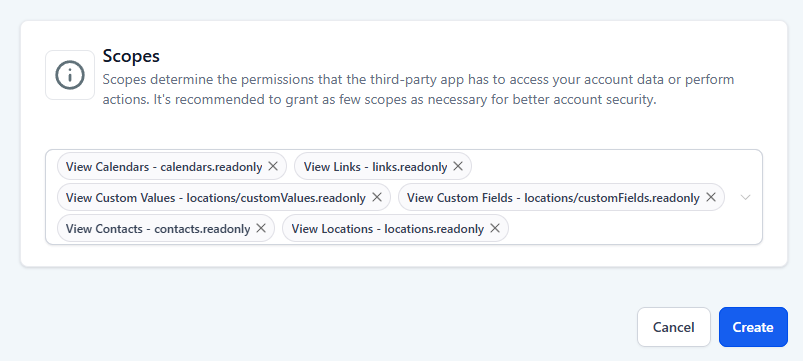
The exact scope names are:
| Scope | What it unlocks |
|---|---|
calendars.readonly | Calendar dropdown for booking links in replies. |
links.readonly | Trigger Links picker. |
locations/customValues.readonly | Custom Values in the merge-tag picker. |
locations/customFields.readonly | Custom Fields in the merge-tag picker. |
contacts.readonly | Standard contact fields (first name, address, city, state, postal code, country, etc.) in the merge-tag picker. |
locations.readonly | Location name (so the integration shows the right sub-account in Settings). |
If you skip one of these, the related picker will show up empty inside Social Sourced — nothing breaks, but you won't see those merge tags.
Step 3 — Create and copy the token
- Give the integration a name (we recommend "Social Sourced").
- Click Create.
- GHL will display the token once. Copy it now — if you close the dialog you'll have to generate a new one.
Step 4 — Paste the token into Social Sourced
- Inside Social Sourced, open Settings → GoHighLevel integration.
- Paste the token into the field and click Save.
- Social Sourced will validate the token by fetching your calendars. If it works, you'll see a green confirmation with your sub-account name and the number of calendars detected.
The token is encrypted at rest. We never log or display the full value after you paste it — only the last four characters appear in the UI.
Step 5 — Install the Master Workflow
The PIT covers everything Social Sourced reads from GHL. To send replies, you'll also need the Master Workflow installed in your sub-account. We'll walk you through that on first run, or you can re-run the setup from Settings → GoHighLevel integration → Reinstall workflow.
Revoking access
To disconnect Social Sourced from a sub-account:
- Inside Social Sourced — click Disconnect on the integration card. The encrypted token is deleted from our database.
- Inside GHL — go to Settings → Private Integrations, find your "Social Sourced" entry, and delete it. The token is invalidated immediately.
Either action is sufficient. Doing both is fine and harmless.